Molecular Docking
Docking engines
Firstly, you should specify the location of docking engines to ensure that the Dockey can invoke the docking engines.
Go to Edit menu -> Global Settings -> Docking tools tab to open the docking engine setting dialog in where you can select the path of docking engines.
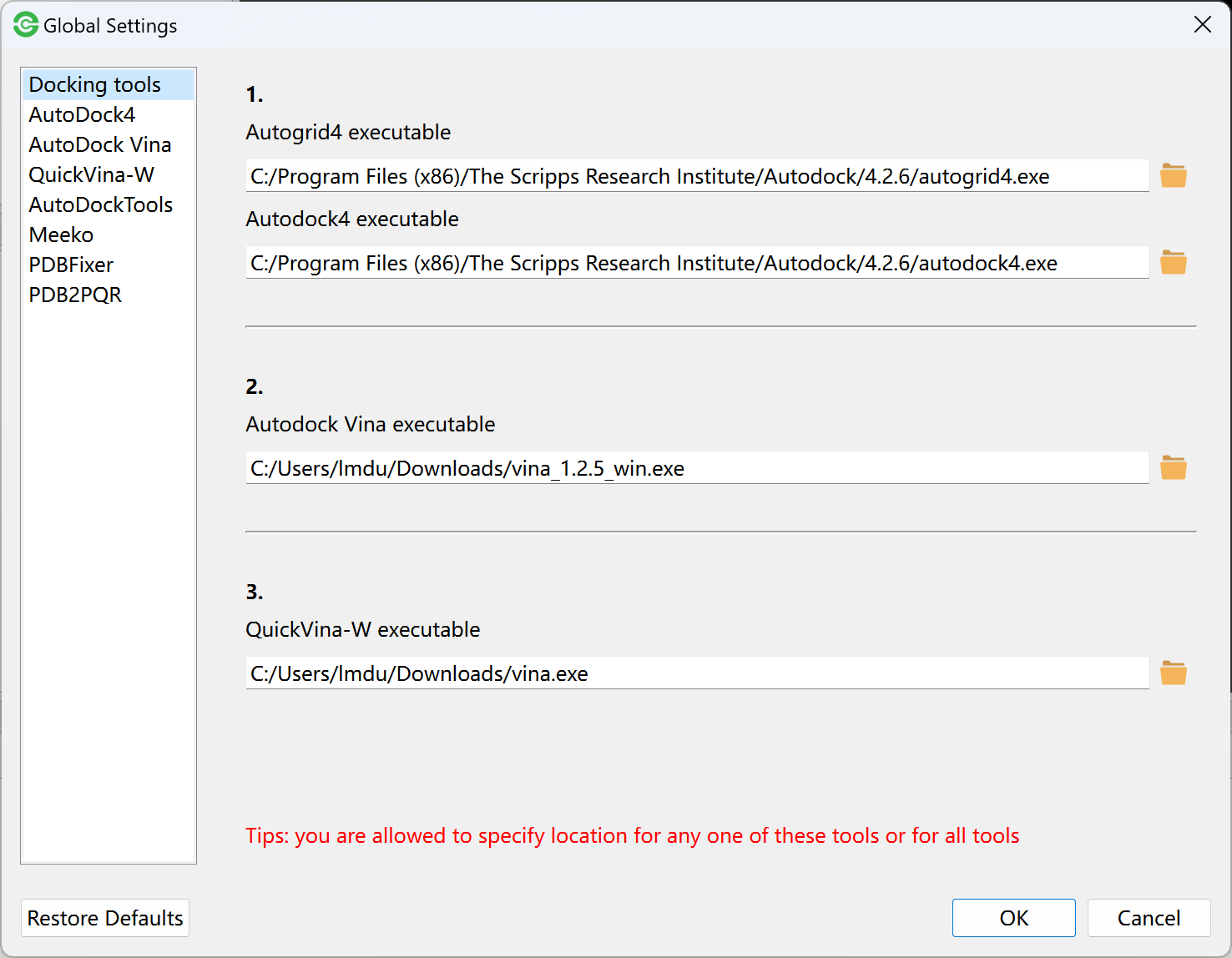
You can click on  to select the executable binary file for tools. You are allowed to select any of Autodock4, Autodock Vina and QuickVina-W to specify the location of tool. For Autodock4, you must specify the location of autodock4 and autogrid4.
Search space
Before running molecular docking, you can specify search space for receptor by adjusting grid box size and position. Otherwise, the whole space of receptor will be used as default search space.
You can go to Grid menu -> Draw Bounding Box to draw a grid box enveloping the whole receptor.
You can go to Grid menu -> Draw Residue Centered Box to select a residue and draw a grid box centered on that residue.
You can also go to Grid menu -> Draw Custom Box to draw a grid box whose size and position can be adjusted through gridbox panel.
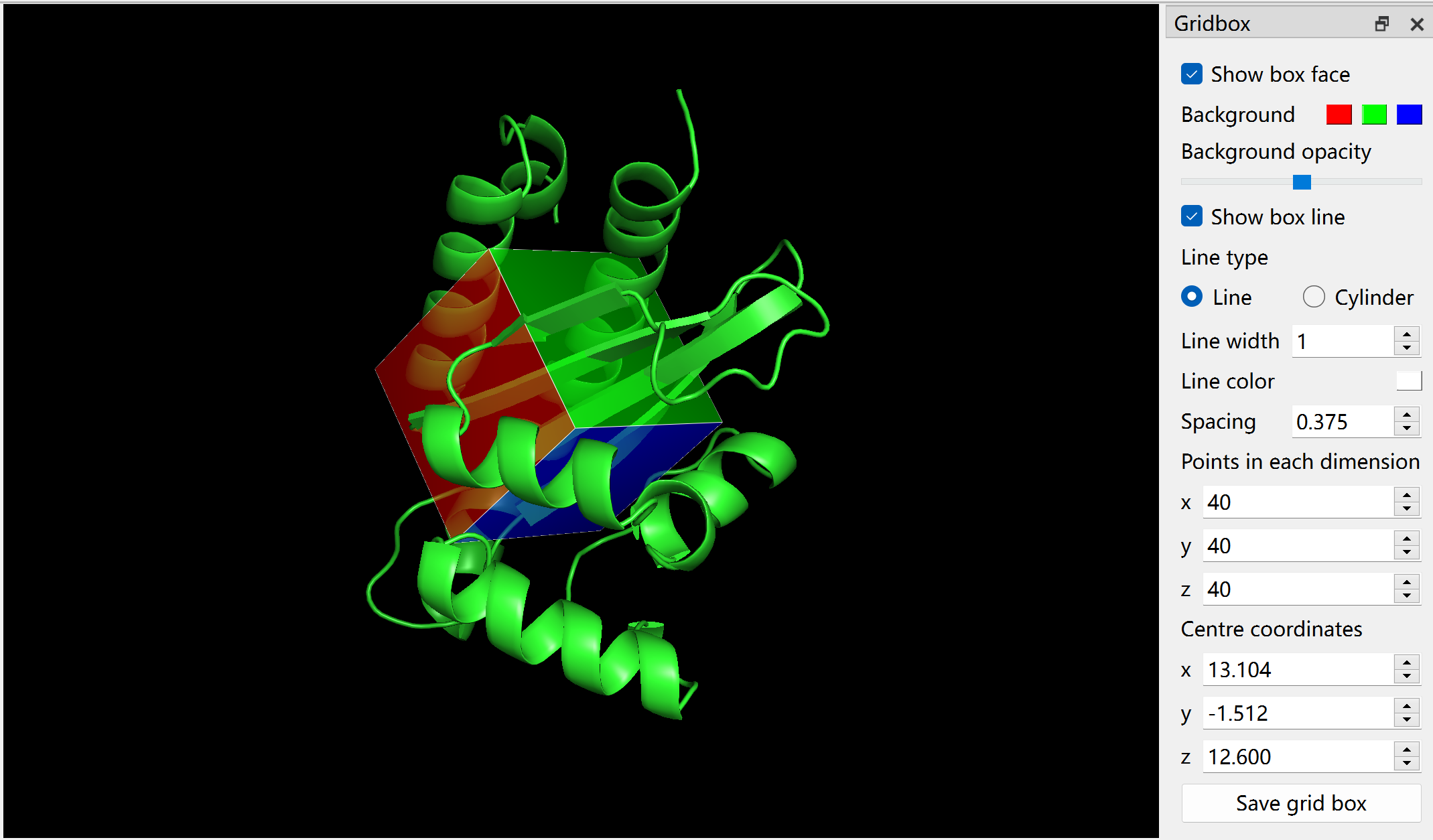
In gridbox panel, you can change the face color and border width of box. The value of spacing, number of points in each dimension (x, y, z), centre coordinates (x, y, z) can be increased and decreased with mouse wheel while hovering over or focusing on input field.
You are allowed to observe the box size and position in PyMOL view.
Note
The value of points in each dimension must be even number. Don’t forget to click Save grid box button after setting grid box.
Performing basic docking
Currently, Dockey supports three docking engines: AutoDock4, AutoDock Vina and QuickVina-W. You can only select one of them to perform docking. When docking finished, if you select another engine to dock, the previous docked results will be automatically deleted.
Run AutoDock4
Go to Run menu -> AutoDock4 to start AutoDock4 docking. You will be prompted with a dialog box asking to select receptor and ligand preparation tools.
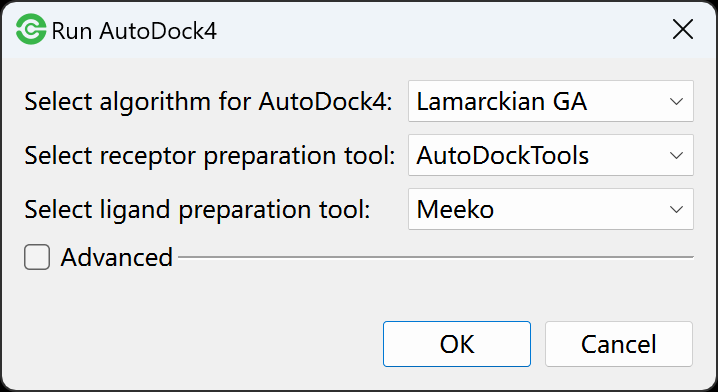
Select a search algorithm: Genetic Algorithm (GA), Lamarckian GA, Simulated Annealing or Local Search for Autodock4. Lamarckian GA is most widely used search algorithm.
Select a receptor preparation tool (AutoDockTools or OpenBabel).
Select a ligand preparation tool (Meeko, AutoDockTools or OpenBabel).
Click OK to start docking tasks.
Note
How to select receptor and ligand preparation tools (view Molecular Preparation section). How to set parameters for AutoDock4 (view Global Settings -> Autodock4 Settings section)
Run AutoDock Vina
Go to Run menu -> AutoDock Vina to start Autodock Vina. You will be prompted with a dialog box asking to select receptor and lignad preparation tool.
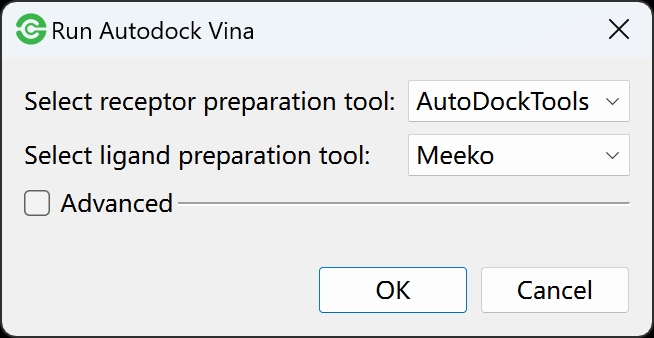
Select a receptor preparation tool (AutoDockTools or OpenBabel).
Select a ligand preparation tool (Meeko, AutoDockTools or OpenBabel).
Click OK to start docking tasks.
Note
How to select receptor and ligand preparation tools (view Molecular Preparation section). How to set parameters for AutoDock Vina (view Global Settings -> Autodock Vina Settings section)
Run QuickVina-W
Go to Run menu -> QuickVina-W to start QuickVina. You will be prompted with a dialog box asking to select receptor and lignad preparation tool.
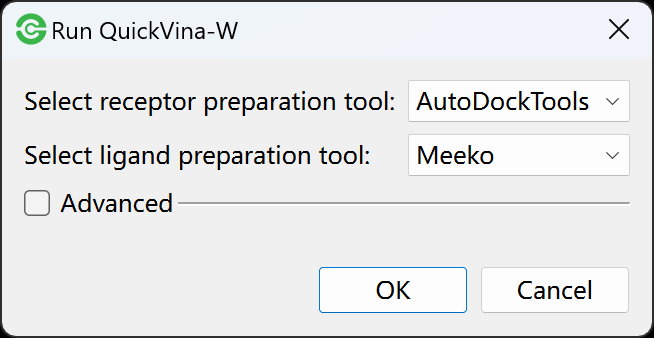
Select a receptor preparation tool (AutoDockTools or OpenBabel).
Select a ligand preparation tool (Meeko, AutoDockTools or OpenBabel).
Click OK to start docking tasks.
Note
How to select receptor and ligand preparation tools (view Preparation Tools section). How to set parameters for QuickVina-W (view Global Settings -> QuickVina Settings section)
Fix Receptor
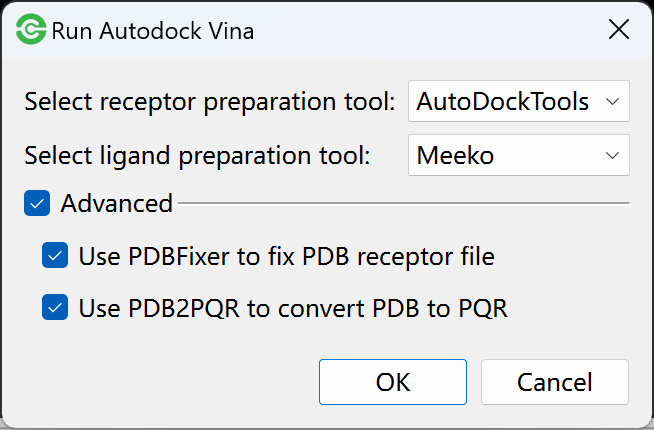
Sometimes, your receptor PDB file may have some problems during molecular docking. You can use PDBFixer or PDB2PQR to fix the PDB file. The parameter settings can be found in Gobal Settings -> PDBFixer Settings and PDB2PQR Settings.
Note
We recommend that you use different receptor preparation tools first, and if the error persists, then consider using PDBFixer or PDB2PQR or both to fix receptors.
Performing flexible docking
Before performing flexible docking, you should specify flex residues for receptors. In molecular list, right-click a receptor, go to Specify Flexible Residues menu to open dialog:
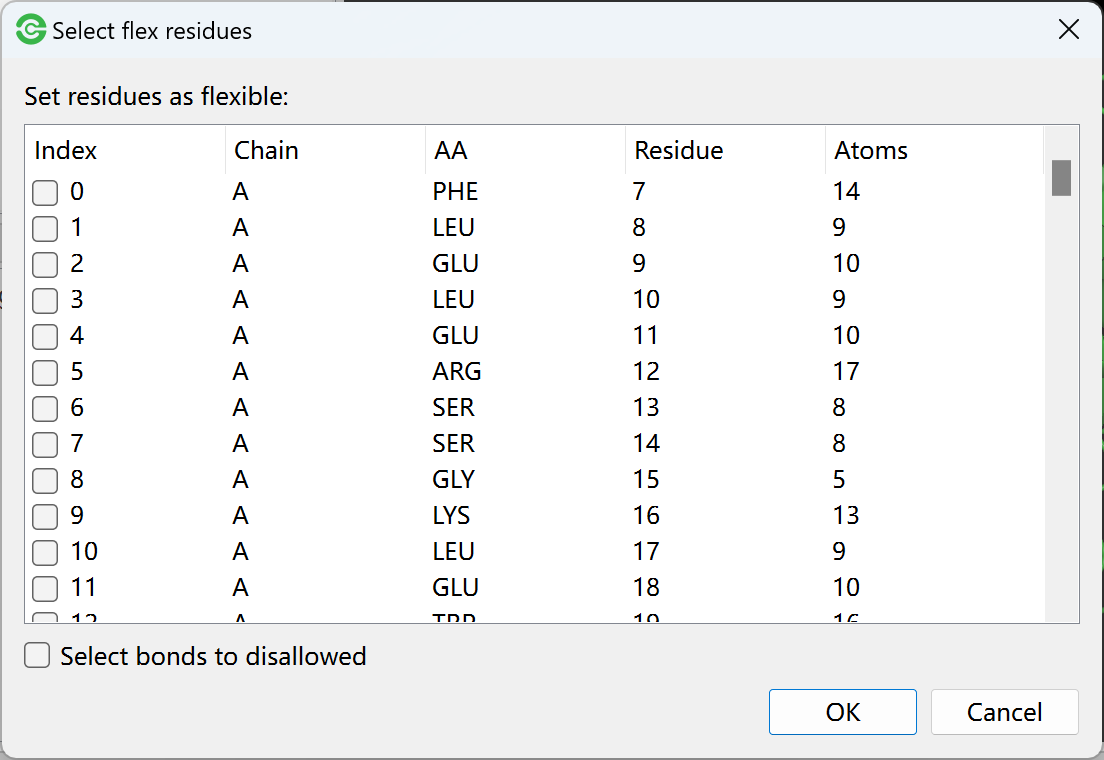
In the residule list, select residues as flexible residues. In addition, you can check Select bonds to disallowed and click a flexible residue to select some bonds to disallowed.
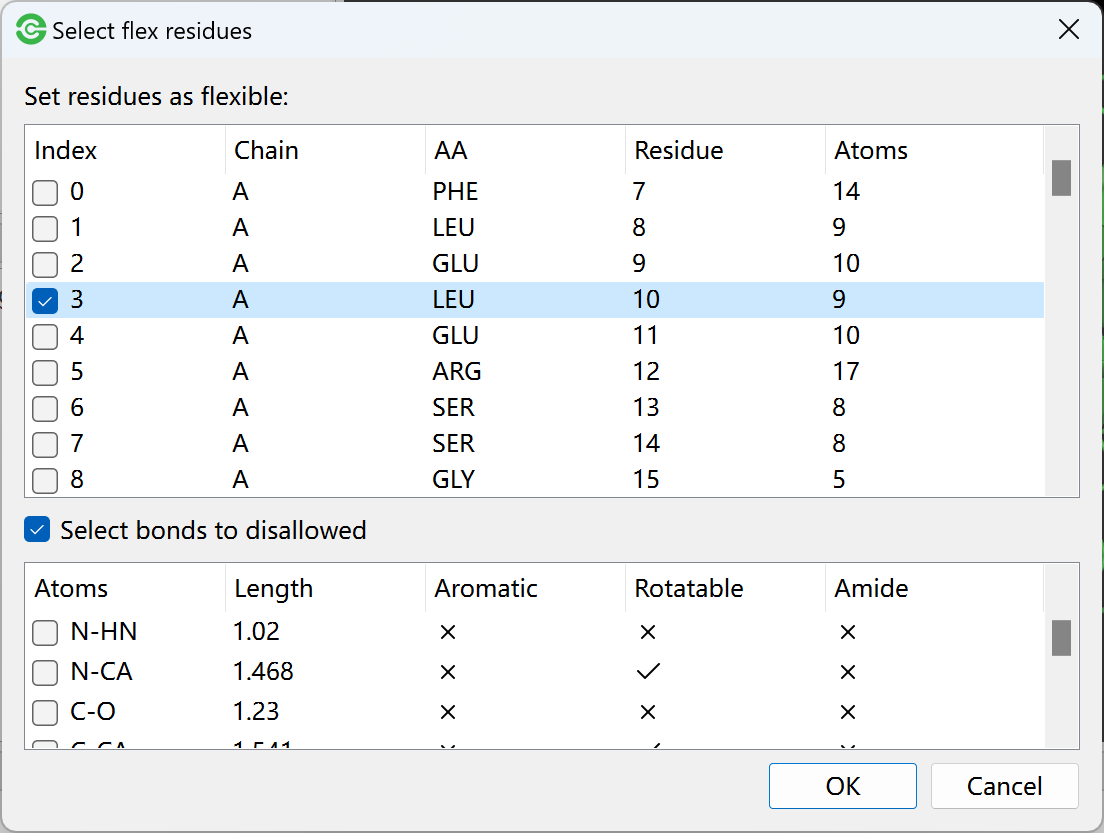
The Dockey will automatically split the receptor coordinates into two PDBQT files (one for the rigid portion and one for the flexible side chains) according to the selected flexible residues.
After specification of flexible residues, you can follow the performing basic docking steps to start flexible docking.
Docking tasks
After setting finished for one of docking engines, the each ligand will be docked to each receptor, the generated task queue can be viewed in task table.
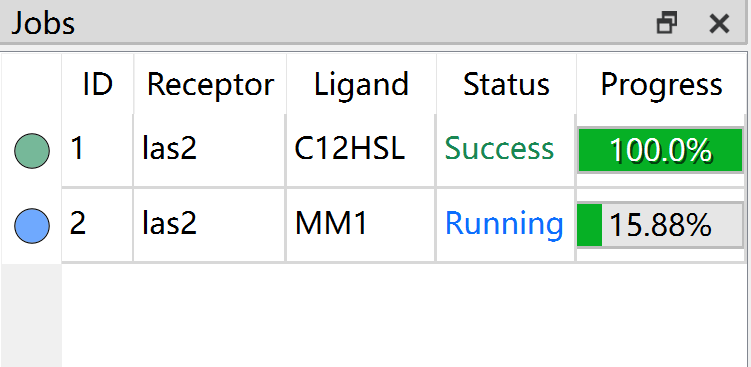
In task table, you can view the status and progress of each docking task. The status includes waiting, running, success, failure and stopped.
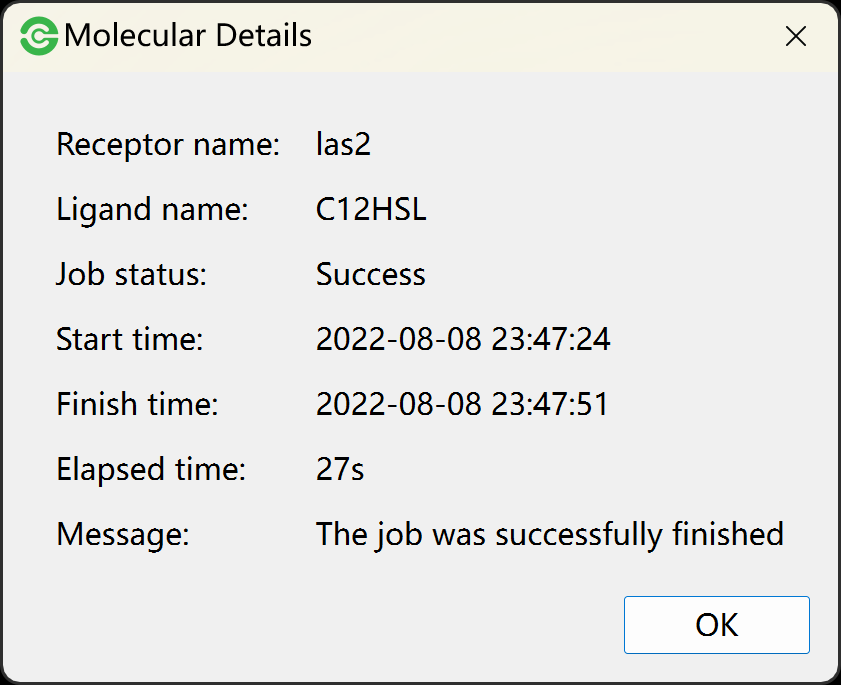
You are allowed to view the start time and end time of task by using View Current Task in task table right-click menu.
You are allowed to use Stop Current Task to stop the running task. Note that the stopped task can not be restarted.
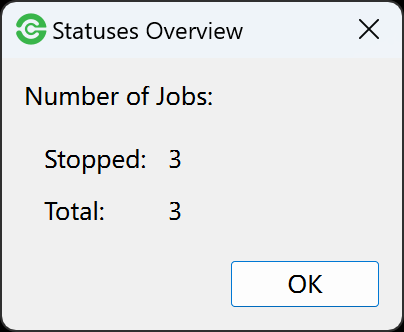
You can use View Task Counts to view the number of tasks.
Parallel docking
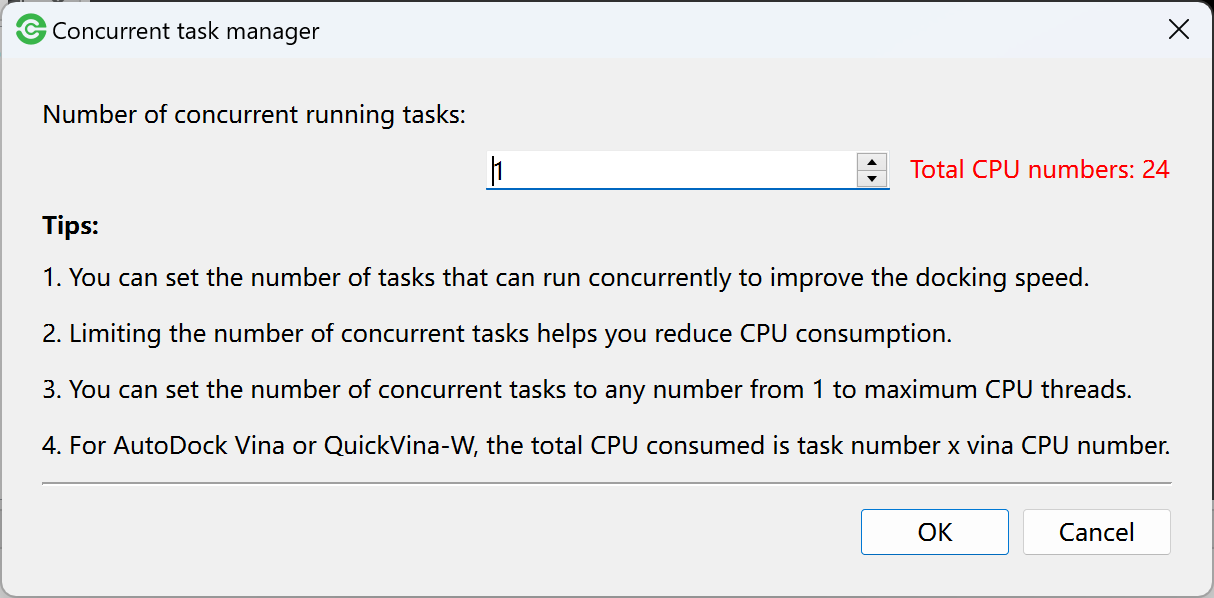
The Dockey allows more than one job to run concurrently. You can go to Task menu -> Settings -> Concurrent Task Manager to open setting dialog and then set the number of jobs that can run concurrently.
Note
The more concurrent running jobs will consume more computing resources including CPUs and Memory. Generally, the number of parallel jobs is less than the maximum number of CPUs.
CPU and memory usage
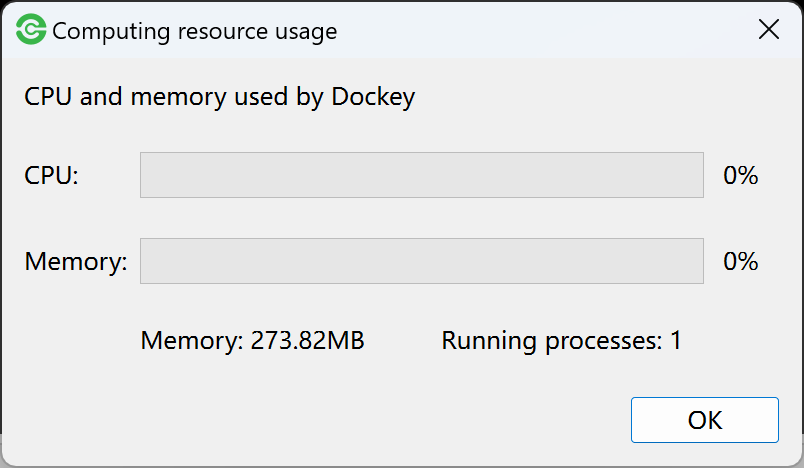
Go to Toolbar -> click  to open computing resource usage dialog where you can view the CPU and memory used by Dockey.