Import molecules
After creating or opening project file, you will be allowed to import receptors and ligands. The Dockey supports various formats that can be read by OpenBabel.
Note
The Dockey will identify molecule file format through extension name. Please make sure that the molecule file extension is identical with its content.
Import Receptors
Import from local file
Go File menu -> Import Receptors to select receptor files and click Open to import into Dockey.
Import from PDB database
Go File menu -> Import Receptor from Database -> PDB to open a dialog:

Then input PDB IDs using comma to separate multiple ones and click OK button. The Dockey will automatically download the molecule from RCSB PDB database and import it.
Import Ligands
Import from local file
Go File menu -> Import Ligands to select ligand files and import to Dockey.
Import from SDF file
If you want to import all ligands from SDF file database. You can go to File menu -> Import Ligand from Database -> SDF to select the sdf file with multiple molecules to import.
Import from Zinc database
Go File menu -> Import Ligand from Database -> Zinc to open a dialog:
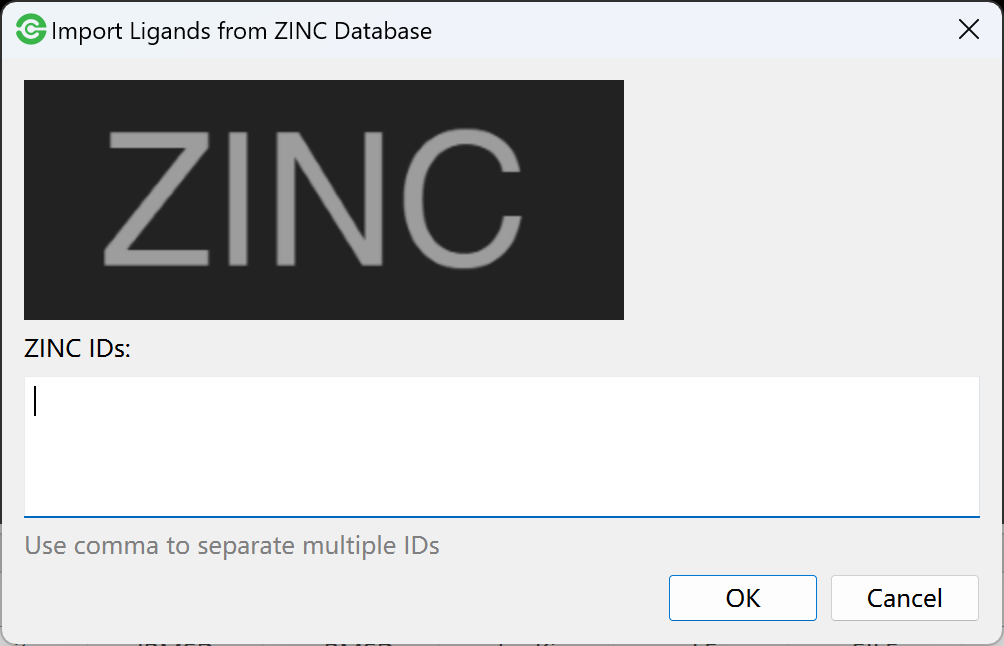
Then input Zinc IDs using comma to separate multiple ones and click OK button. The Dockey will automatically download the molecule from Zinc database and import it.
Import from PubChem database
Go File menu -> Import Ligand from Database -> PubChem to open a dialog:
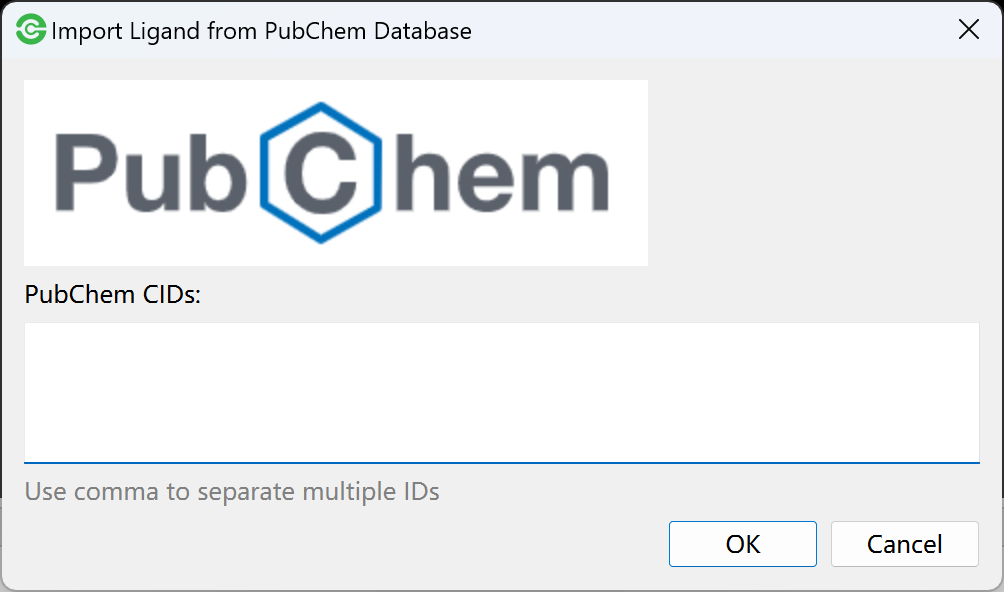
Then input PubChem IDs using comma to separate multiple ones and click OK button. The Dockey will automatically download the molecule from PubChem database and import it.
Import from ChEMBL database
Go File menu -> Import Ligand from Database -> ChEMBL to open a dialog:
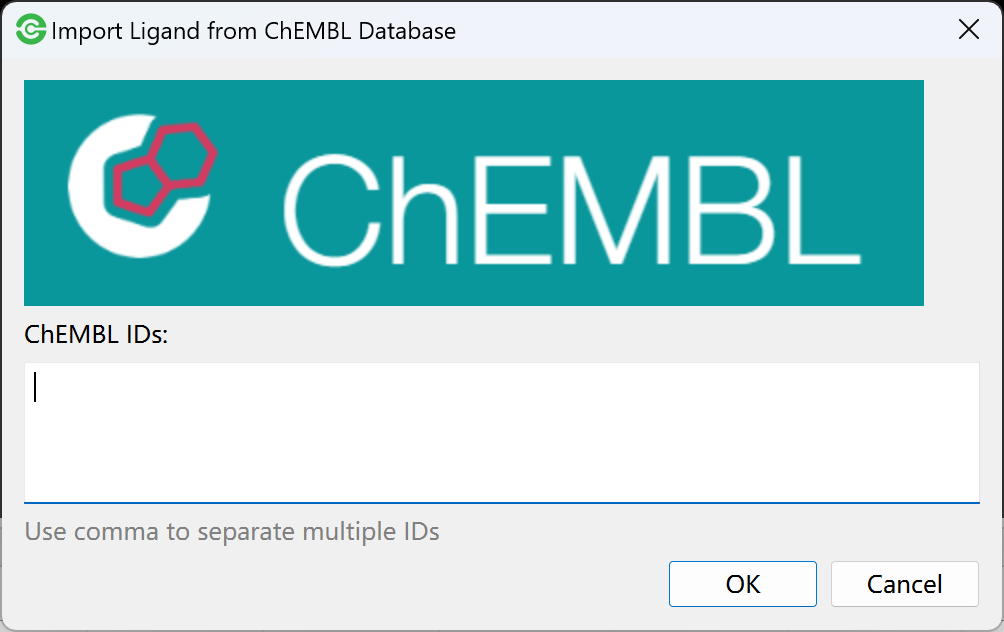
Then input ChEMBL IDs using comma to separate multiple ones and click OK button. The Dockey will automatically download the molecule from ChEMBL database and import it.
Molecular List
The imported ligands and receptors will be separately displayed in molecular list.
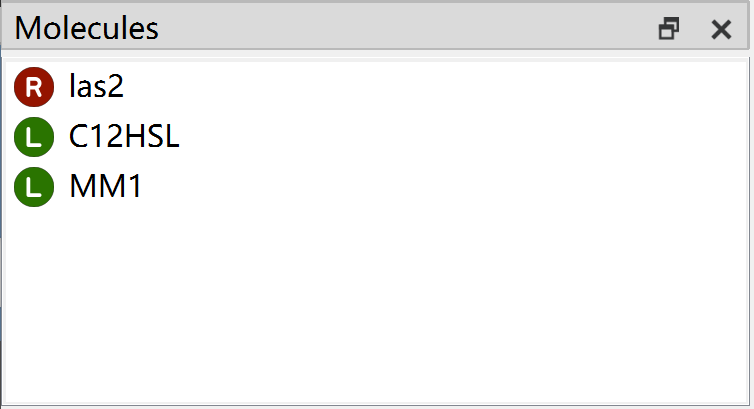
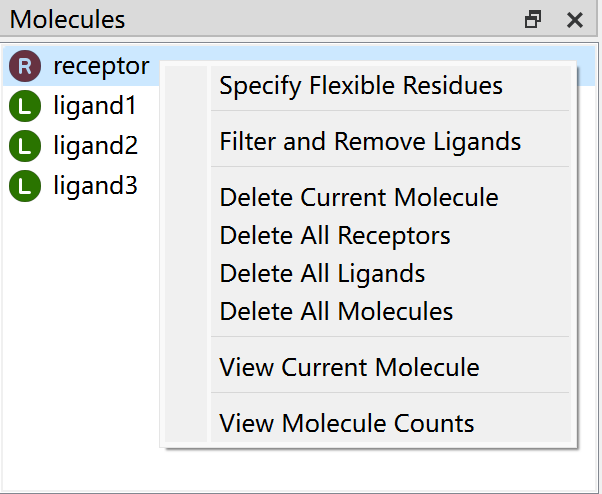
The molecular list has right-click menu.
Delete molecules
You are allowed to use:
Delete Current Molecule to remove current selected molecule.
Delete All Receptors to remove all receptors from molecular list.
Delete All Ligands to remove all ligands from molecular list.
Delete All Molecules to remove all receptors and ligands from molecular list.
Filter and remove ligands
You are also allowed to use filter conditions to find molecules and remove them from molecular list.
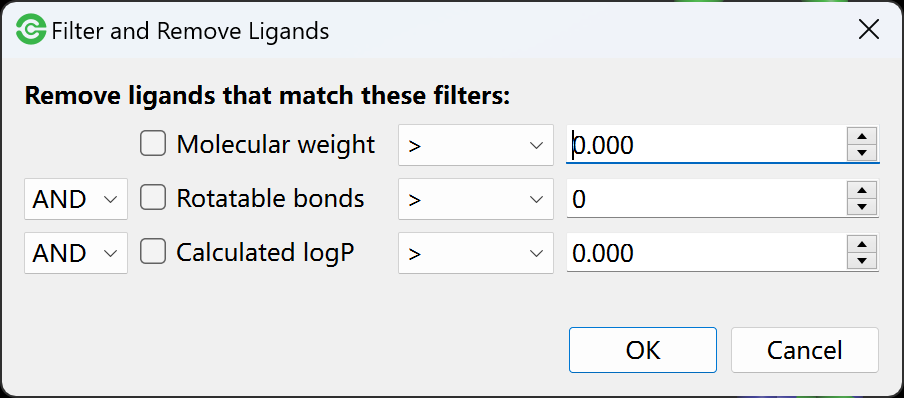
You can use molecular weight, number of rotatable bonds and calculated logP to filter ligands. The ligands that math these filters will be removed from molecular list.
View molecule details
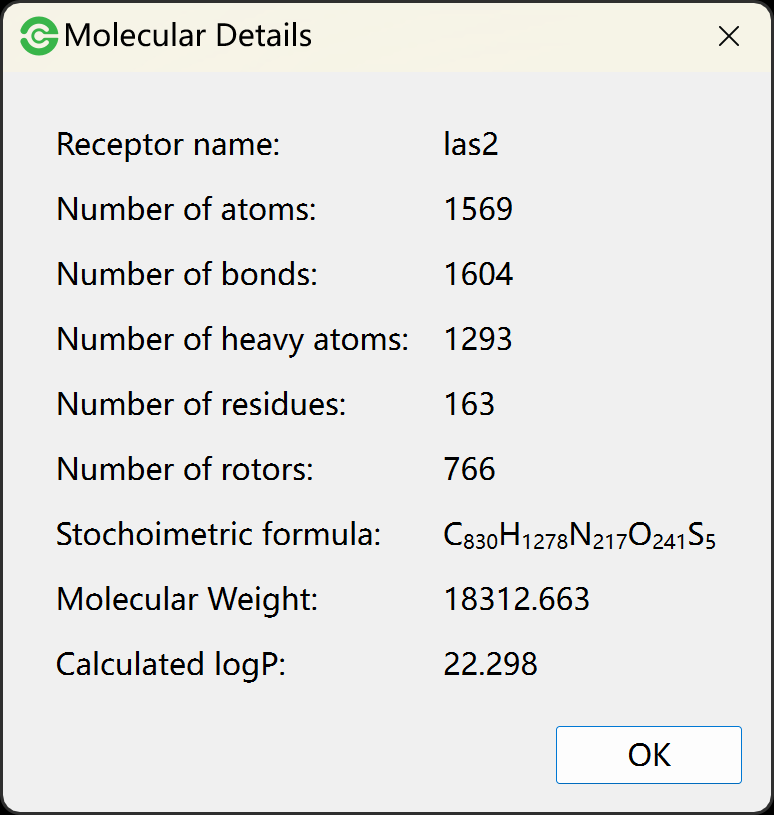
You can use View Molecule Details to obtain detailed information of molecule including number of atoms, bonds, heavy atoms, residues and rotors, formula, molecular weight as well as calculated logp.
View molecule counts
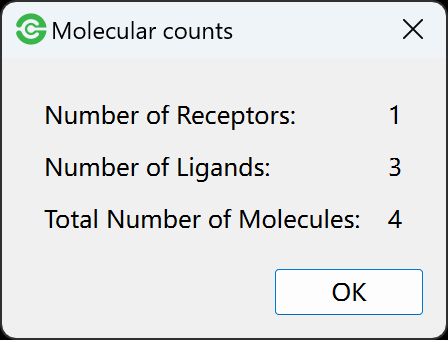
You can use View Molecule Counts to view the number of receptors and ligands.