Overview
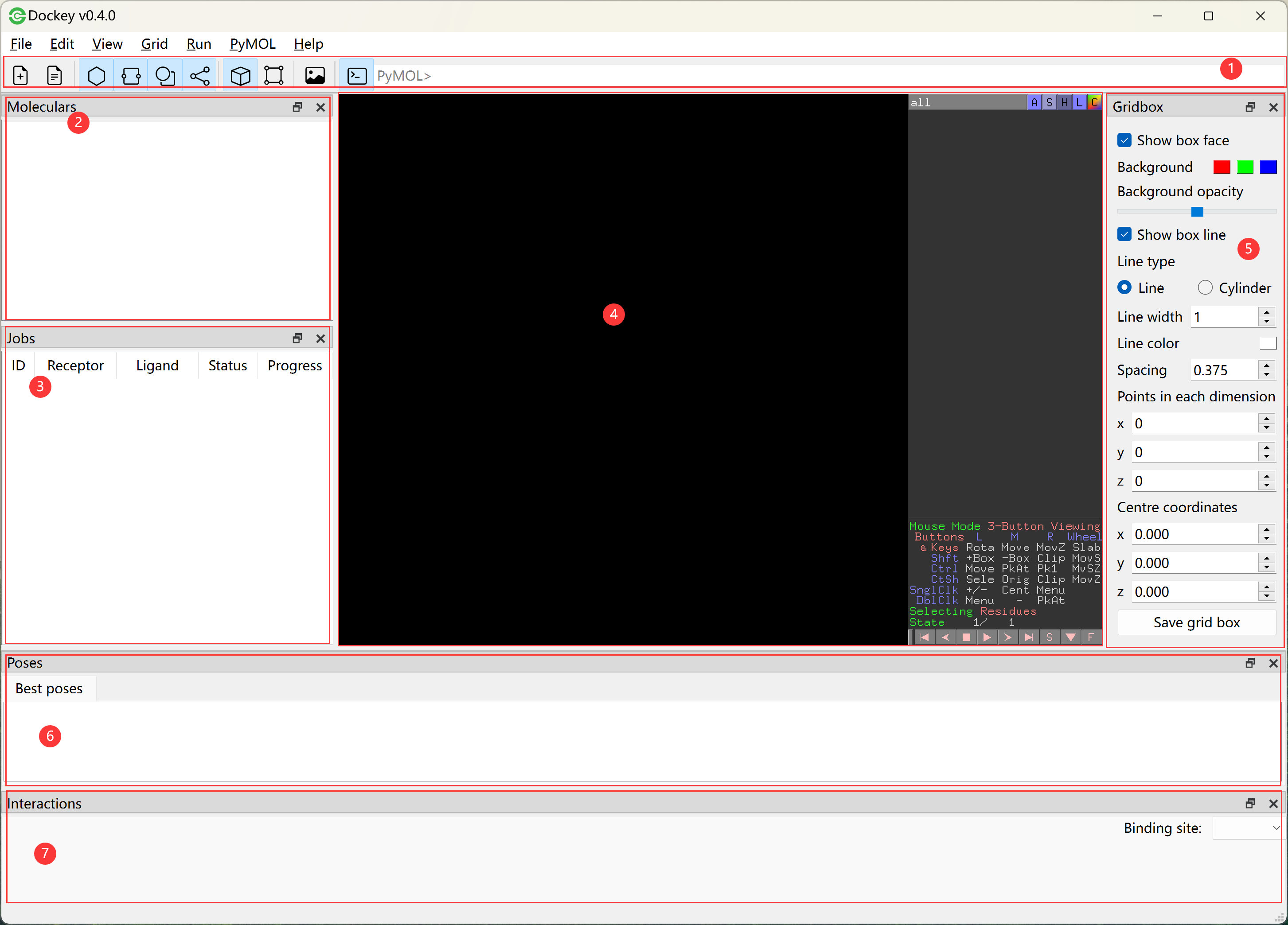
1. Toolbar
click to create a new project file
click to open an existing project file
a toggle button to show or hide molecular list
a toggle button to show or hide job table
a toggle button to show or hide pose table
a toggle button to show or hide interaction table
a toggle button to show or hide grid box adjusting panel
save the pymol view to a png file
view the CPU and memory usage during docking
a toggle button to show or hide pymol command input
2. Molecular list
a list to display receptors and ligands
Go to View menu -> Show Molecular List to show or hide this list
3. Job table
a table to show all docking jobs
Go to View menu -> Show Job Table to show or hide this table
4. PyMOL view
used to visualize the 3D structure of molecules, conformations and interactions
5. Grid box panel
a panel for adjusting grid box size and position
Go to View menu -> Show Grid Box to show or hide grid box and adjusting panel
6. Pose table
a table to show best docking poses for all ligands and receptors as well as poses for certain job
Go to View menu -> Show Pose Table to show or hide this table
7. Interaction table
a table to show interactions between ligand and receptor for certain pose
Go to View menu -> Show Interaction Table to show or hide this table